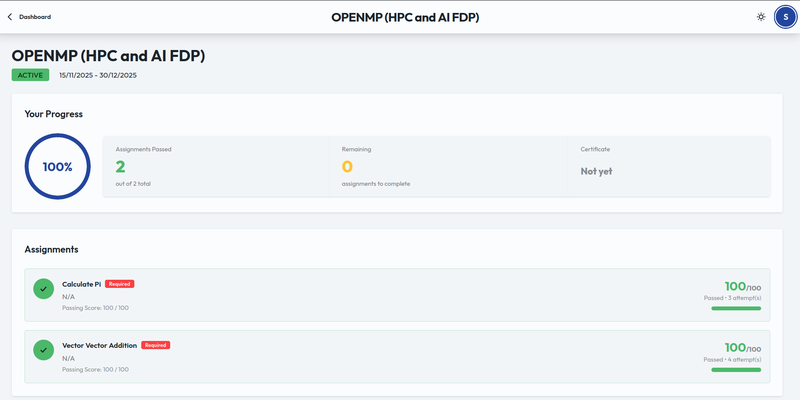
Participant
All functions for Participant are documented below.
Firstly, a participant should signup via the system dashboard, then they can use the same credentials across both jupyterhub and the system.
The system dashboard is available at : nsm.adityaap.tech
Jupyterhub is available at : j.adityaap.tech
Authentication
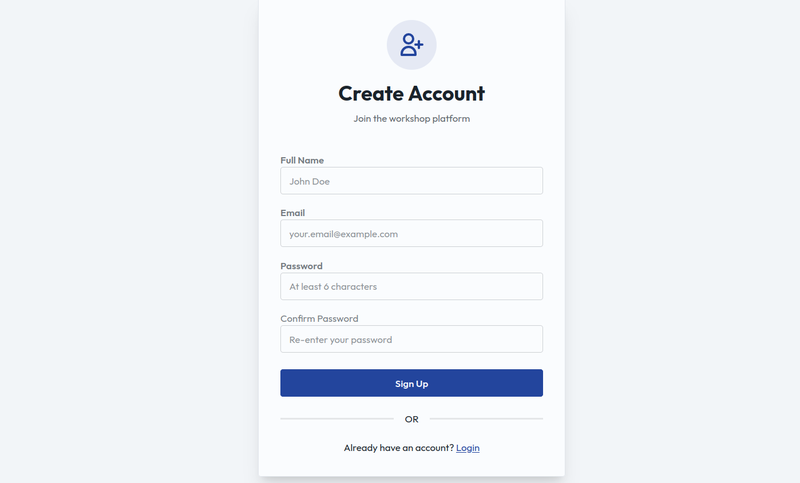
Signing Up
- First click on
Sign upbutton besideDon't have an account?on the initial login page. - Then fill in the necessary details and click on
Sign Up
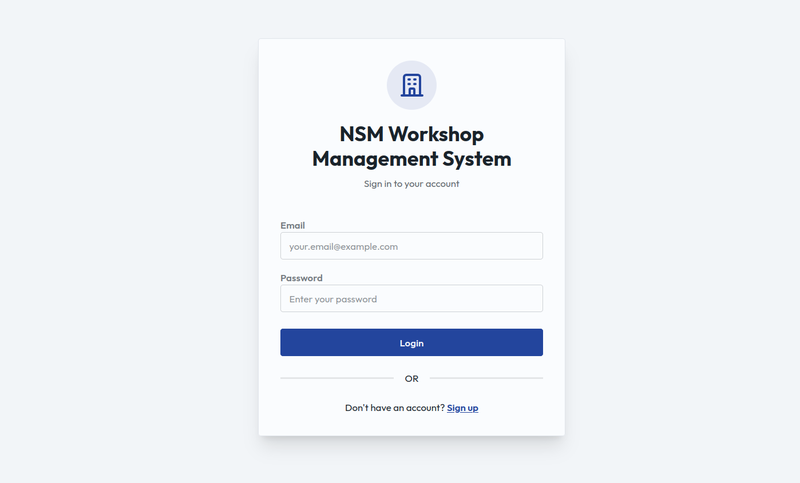
Login
System
After signing up, enter you email and password in the given fields to login into your dashboard.
Jupyterhub
For signing into jupyterhub use the same credentials you used to signup/login to system dashboard. Make sure you use your email for username.
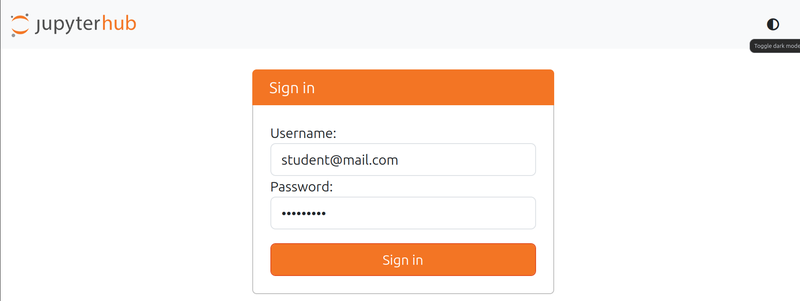
- Please wait for your instance to spawn.
Changing color scheme
System
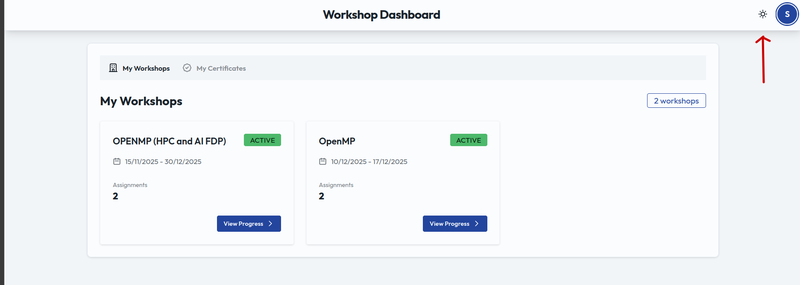
- Click on the moon/sun icon beside the profile icon on the top right of page inside of the navbar to toggle light/dark theme.
Jupyterhub
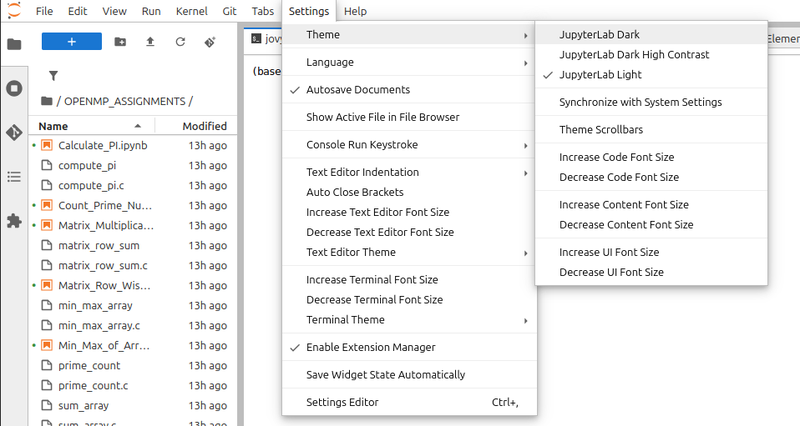
- Go into
Settings>Theme, then choose your preferred theme
Logging Out
System
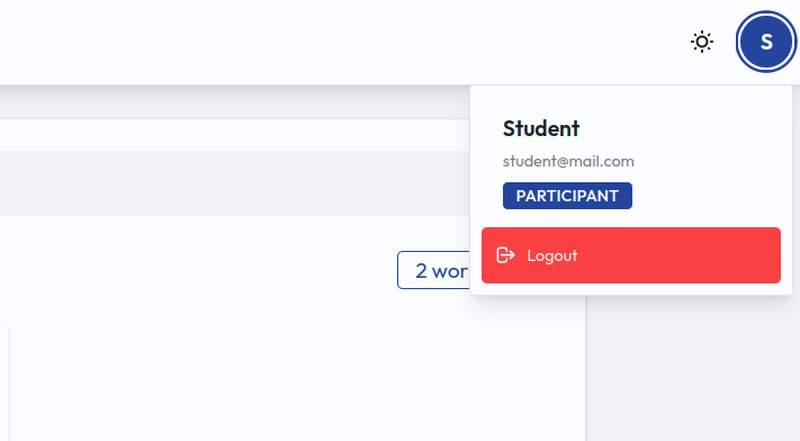
- Click on you profile on top right, then
Logout
Jupyter
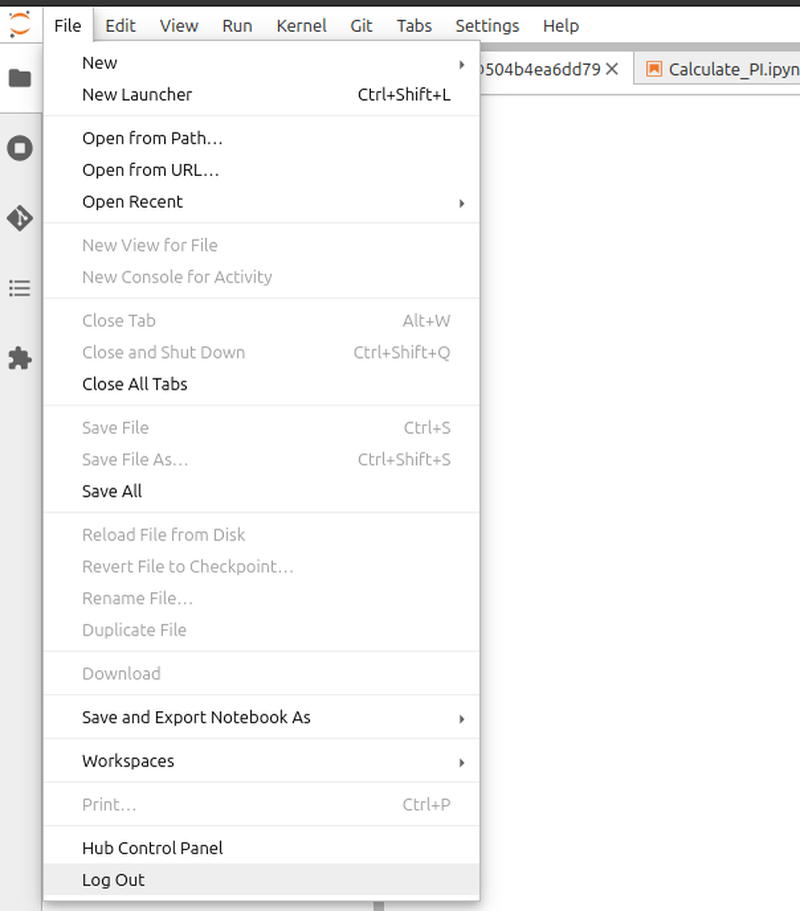
- Go to
File > Log Out
Workshop
Accessing Jupyterlab
As a participant you will primarily interact with the course contents (usually jupyter notebooks) provided to you by the course instructors.
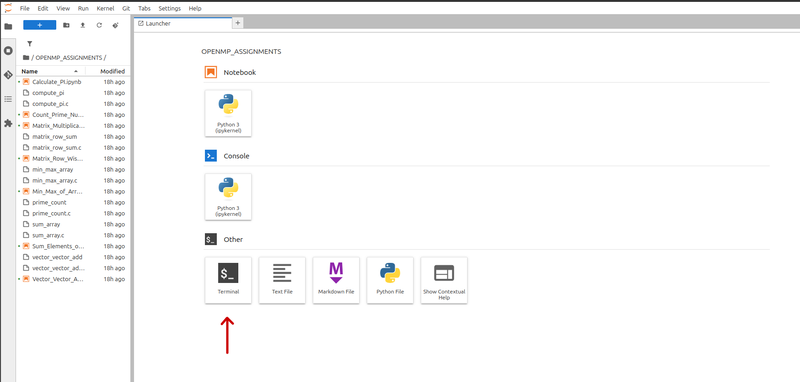
Once you log into jupyterhub, you shoud see a standard jupyterlab interface. You have full access to all the files in your home directory. This environment has two extra shell commands: start and evaluate.
You can open a terminal session using Terminal button in the launcher:
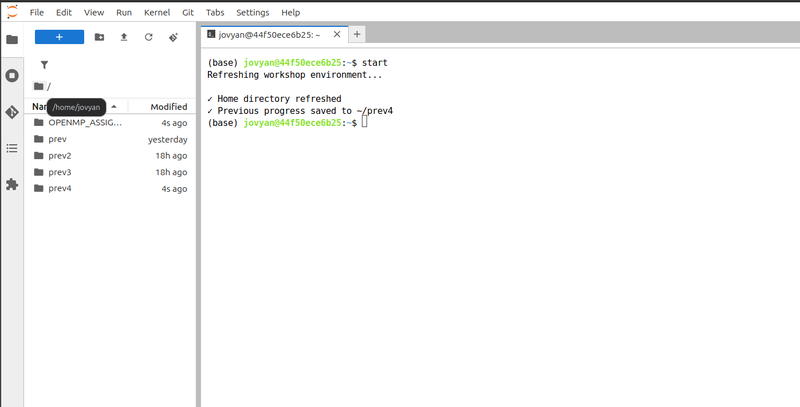
start command
- The
startcommand allows you to download all the course material provided by your instructors and place it in your home directory. - When
startis run, it saves all the current contents of home directory, in a directory namedprev. If there already exists aprevdirectory, it creates aprev2directory and so on. This makes sure you do not lose your progress, you can always go back to theseprevdirectories. - After that, the latest course material is downloaded and saved to the home directory.
startalso allows you to start over fresh with the material. And it allows for instructors to update their material at any time.
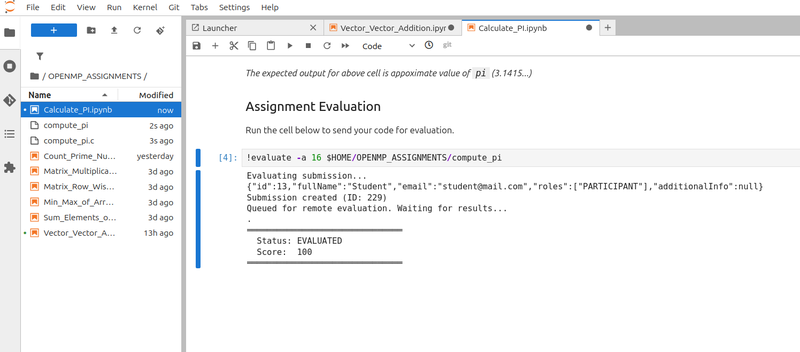
evaluate command
- The
evaluatecommand allows you to make submissions to an assignment. - Your instructor will usually fill out the necessary parameters ( which are :
assignment_idandsubmission_file) and present it as a cell of a notebook. You won't need to run this command in a terminal by yourself. - When this command is run, your code will be sent to a remote evaluation server, where it enters a queue to be executed and judged fairly based on its correctness and performance.
- Your submission may wait some time in queue, especially the server load is high.
- The judge will assign your submission a score. If this score happens to be greator than or equal to the passing score, you will pass that assignment.
- You can make multiple submissions for any assignment. For scoring, the best score among all the submissions is considered.
Checking Course progress
The system dashboard should have all the workshops listed. If you cannot see a particular workshop, you aren't enrolled in it. Provide your email to the workshop instructor, and ask them to enroll you into the workshop.
Each workshop may have one or more compulsory assignments. To complete the course you must pass all the Required assignments.